1. Export an Avid DS (Subcap) subtitle file from Live Timecode Notes app
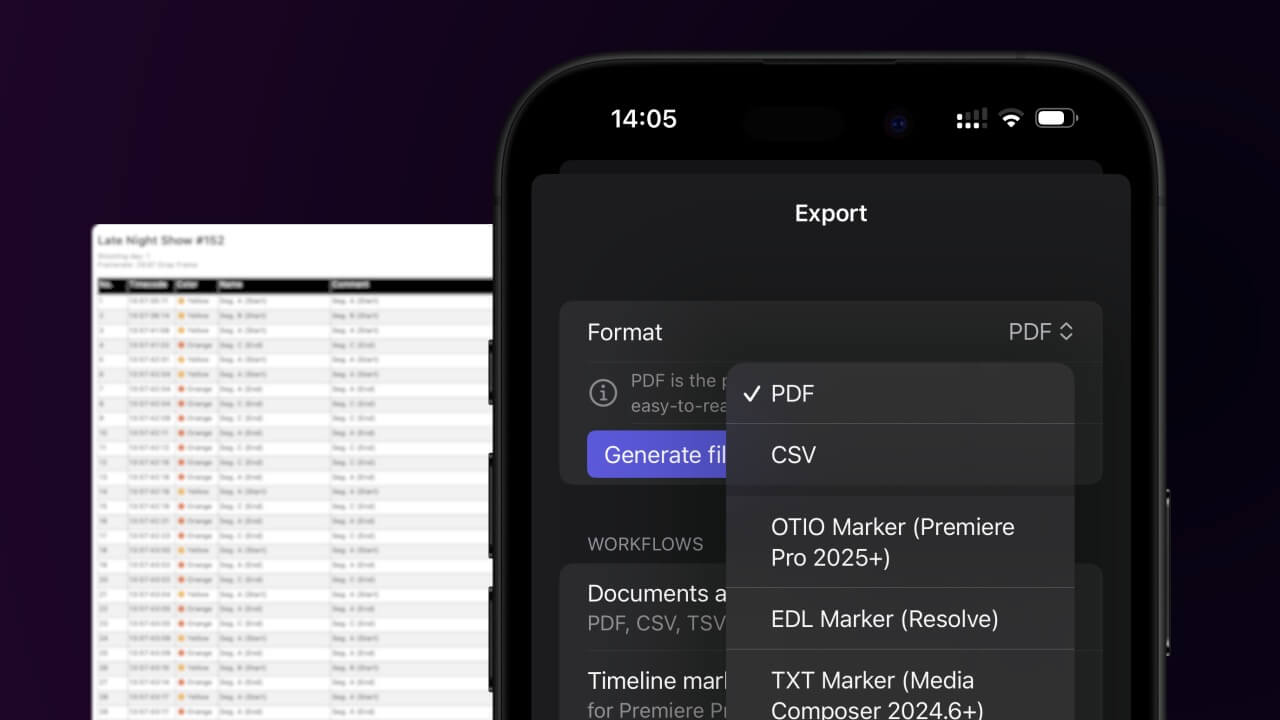
Open the project in the app, then select "Export Notes" from the top menu. Select "DS Caption File" and activate "Sort by Timecode". Generate and save the subtitle file.
2. Import the Avid DS (Subcap) subtitle file in Avid Media Composer
Open your video in Avid Media Composer and go to "Tools > Effect Palette > Generator > SubCap". Drag SubCap onto the video track in your timeline. Go to "Tools > Effect Editor > Caption Files > Import Caption Data" and select the SubCap file from your computer.
🚀 Færdig
Det var alt for nu! Hvis du fandt denne vejledning nyttig, så del den for at støtte os. Hvis du har forslag til, hvordan vi kan forbedre workflowet, så giv os besked!